CobbledWorks
ProofStop · the tech's side
ProofStop by CobbledWorks · The tech's side

The tech's side

From the invite on their phone to the proof a customer sees. Every screen here is the real app.
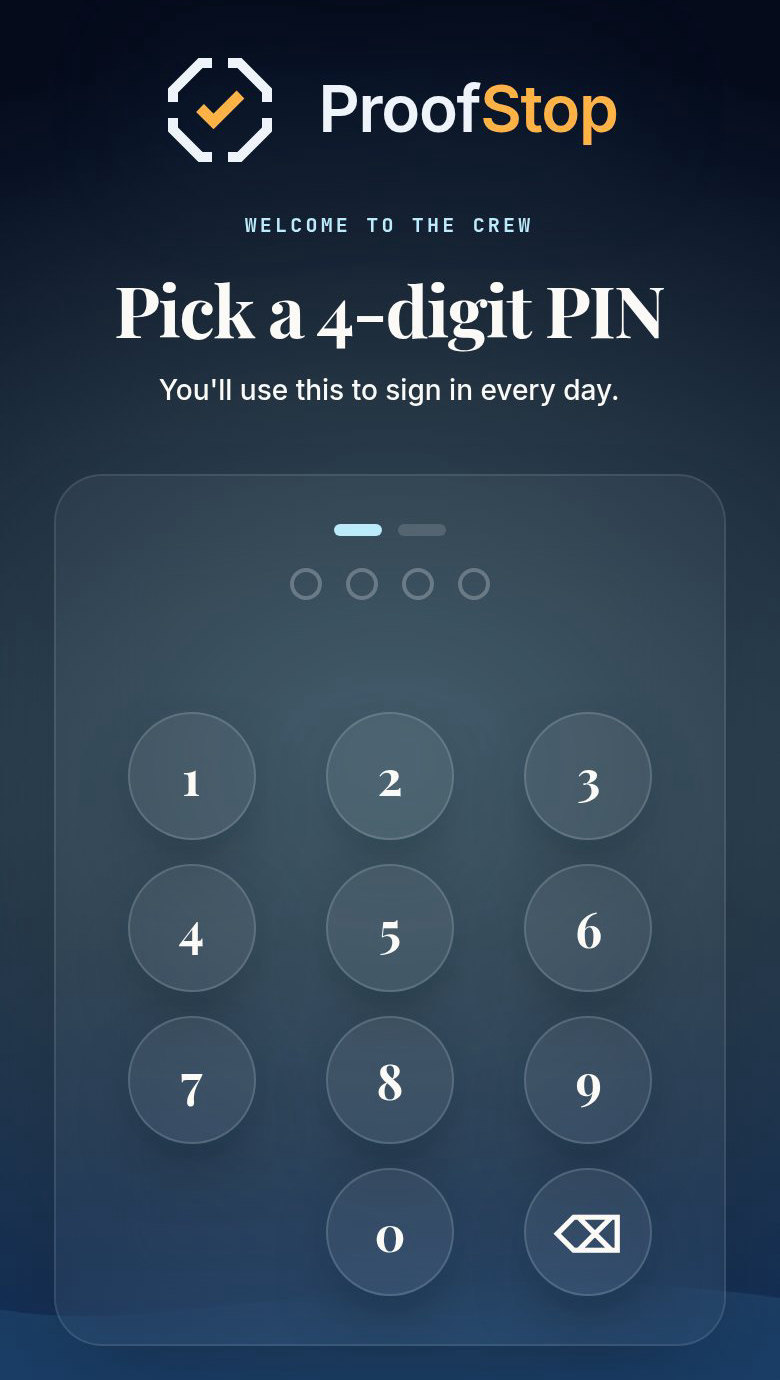
The ProofStop setup screen on a phone: Welcome to the crew, Pick a 4-digit PIN, four empty dots and a numeric keypad.
Step 01 · The invite

A link and a 4-digit PIN
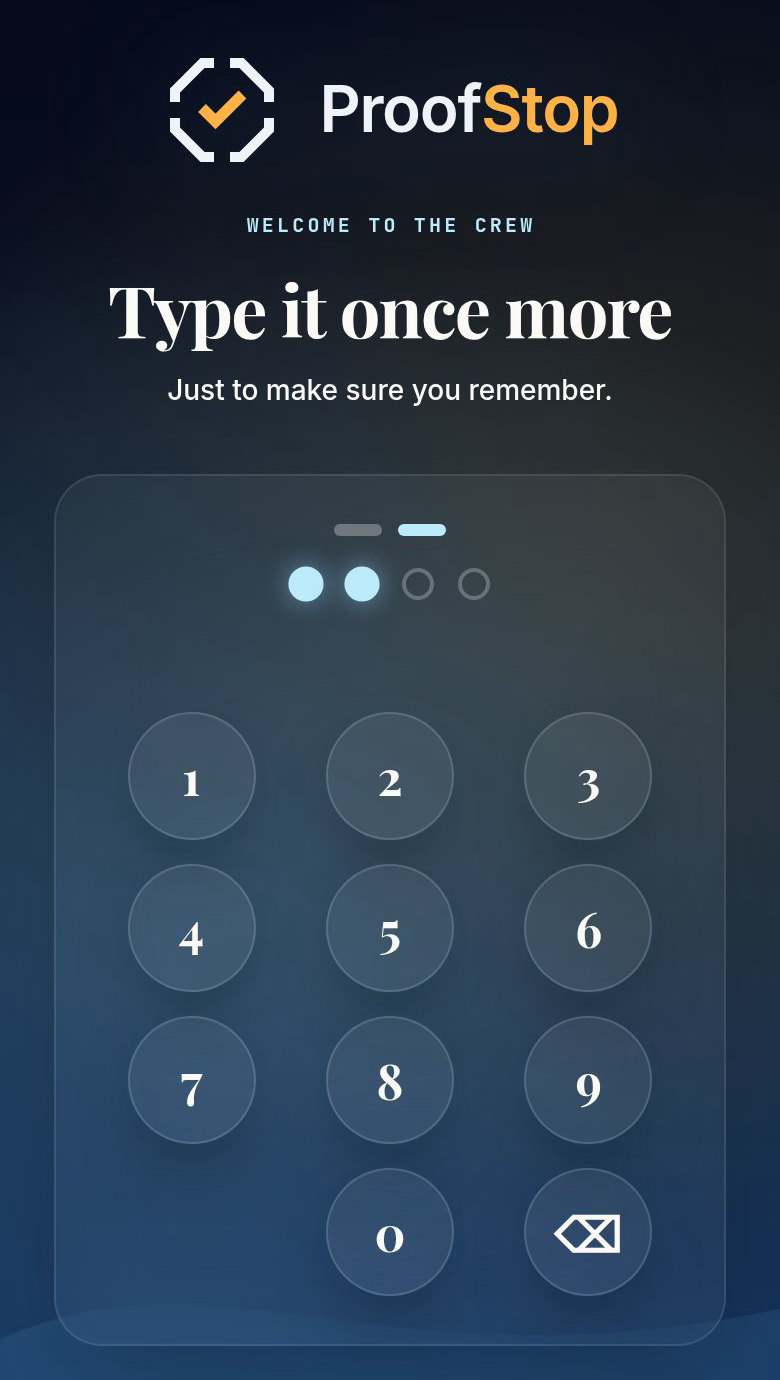
The same setup screen a step later: Type it once more, just to make sure you remember, two of four dots filled.
Step 02 · Once more

The phone becomes the key
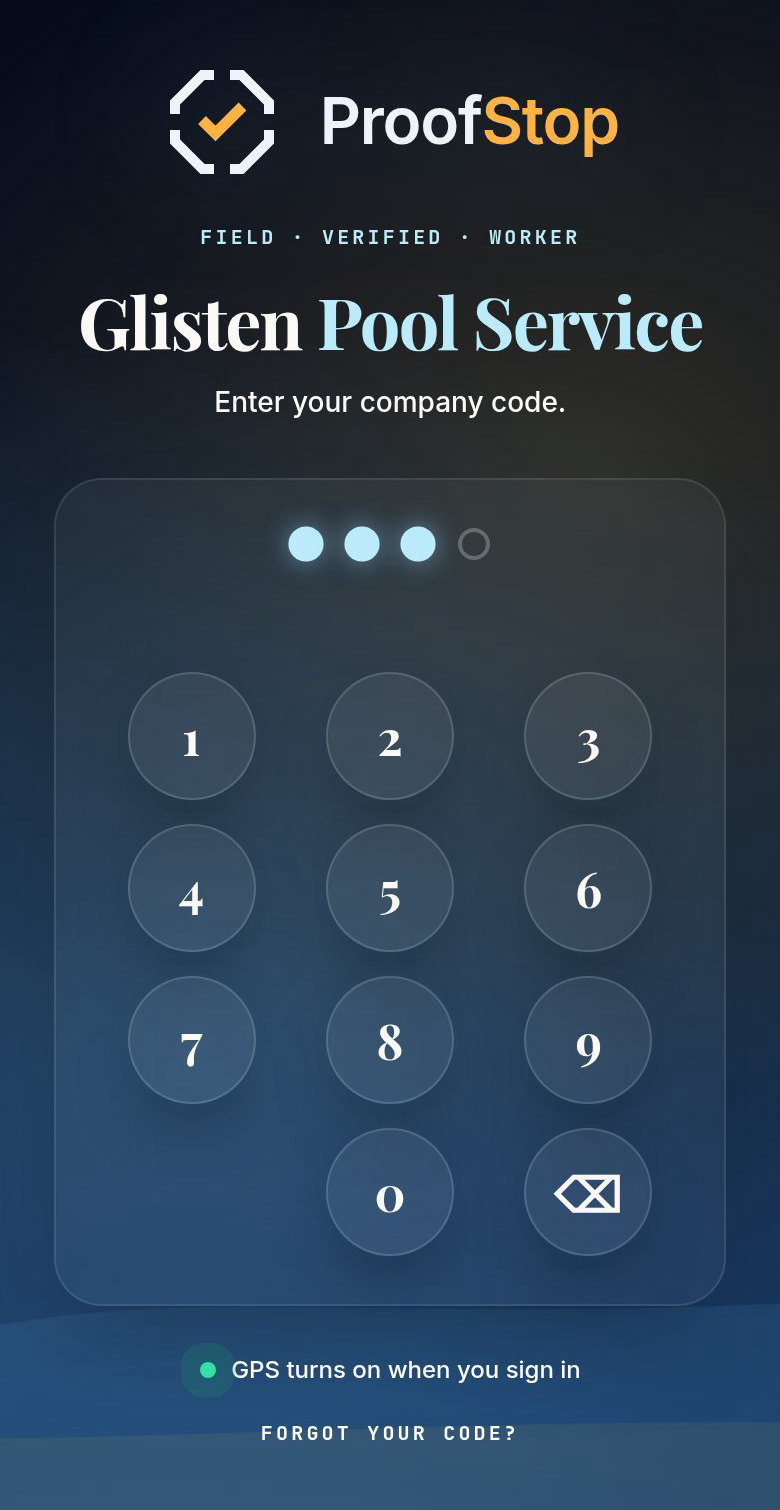
The tech sign-in screen: ProofStop, enter your company code, three of four dots filled, and the line GPS turns on when you sign in.
Step 03 · Every morning

Four digits, or Face ID
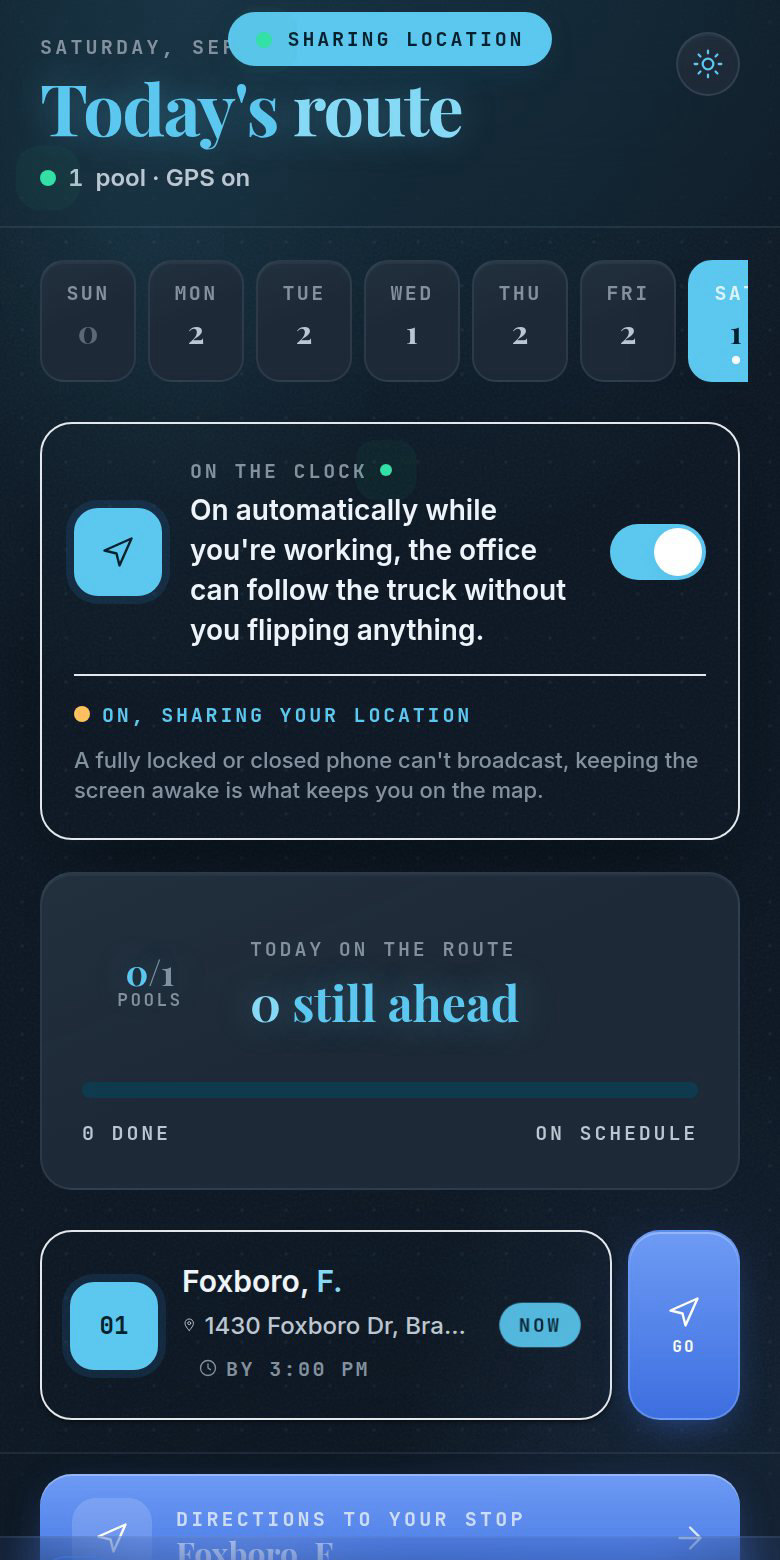
Today's route in dark mode with a Sharing location badge, the On the clock switch turned on, and a Directions to your stop banner at the bottom: the office can follow the truck, and the app hands the tech directions to the next stop.
Step 04 · On the clock

One switch and the truck is on the map
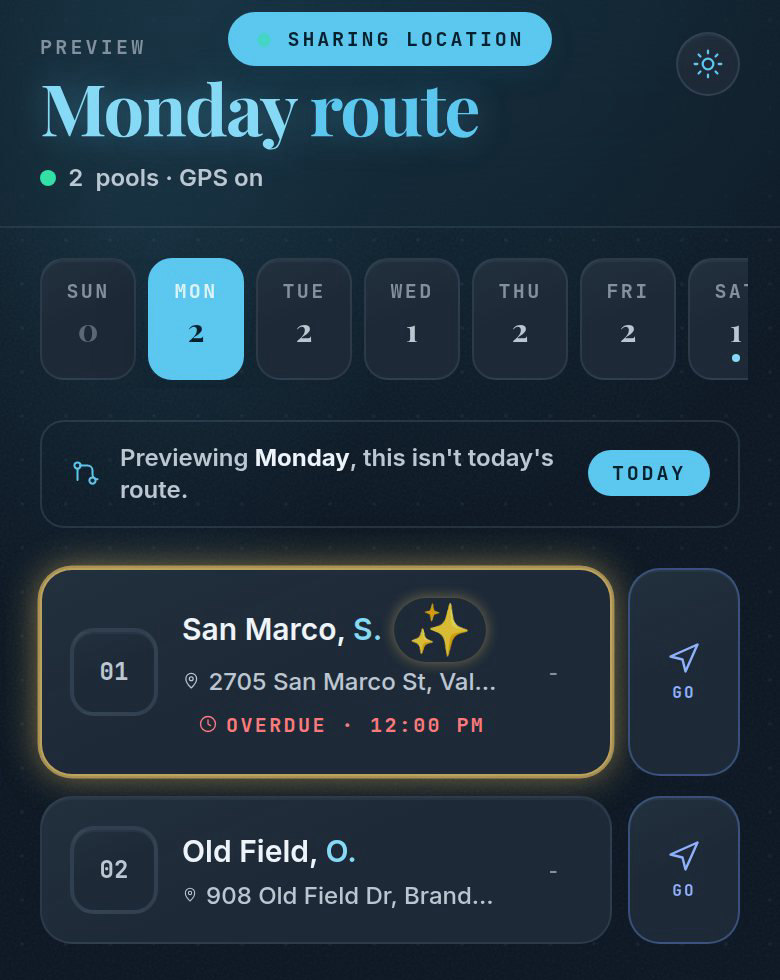
The Monday route: a week strip with stop counts per day, two numbered stops with addresses and Go buttons, the first marked overdue at 12:00 PM.
Step 05 · The route

The week, in the office's order
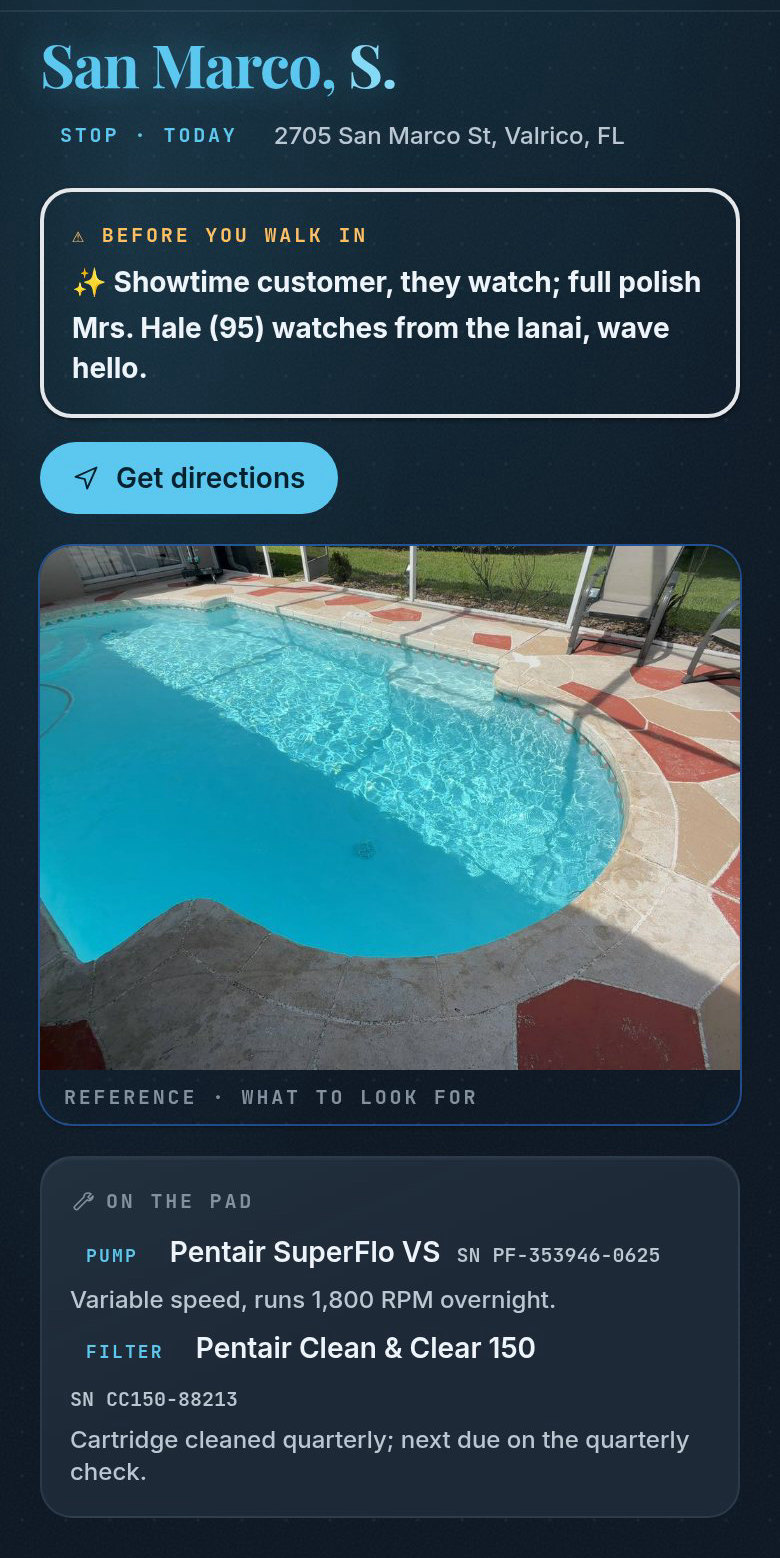
The San Marco stop: a Before you walk in card saying showtime customer and Mrs. Hale watches from the lanai, a reference photo of the pool, and On the pad with the pump and filter serial numbers.
Step 06 · The stop

Read it before you walk in
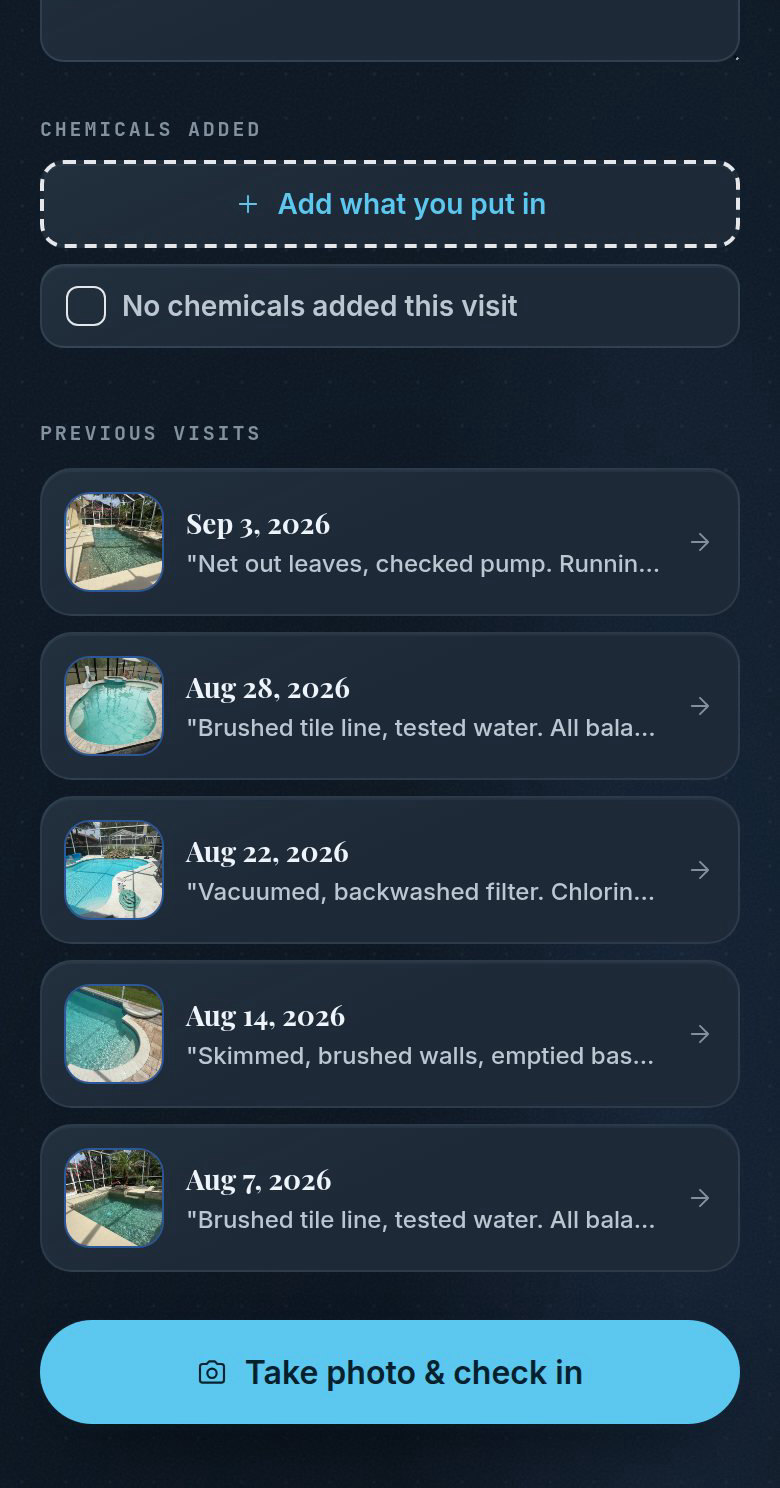
The Chemicals added block: Add what you put in, a checkbox for No chemicals added this visit, then the list of previous visits with photos and Take photo and check in.
Step 07 · The treatment log

What went in, or nothing did
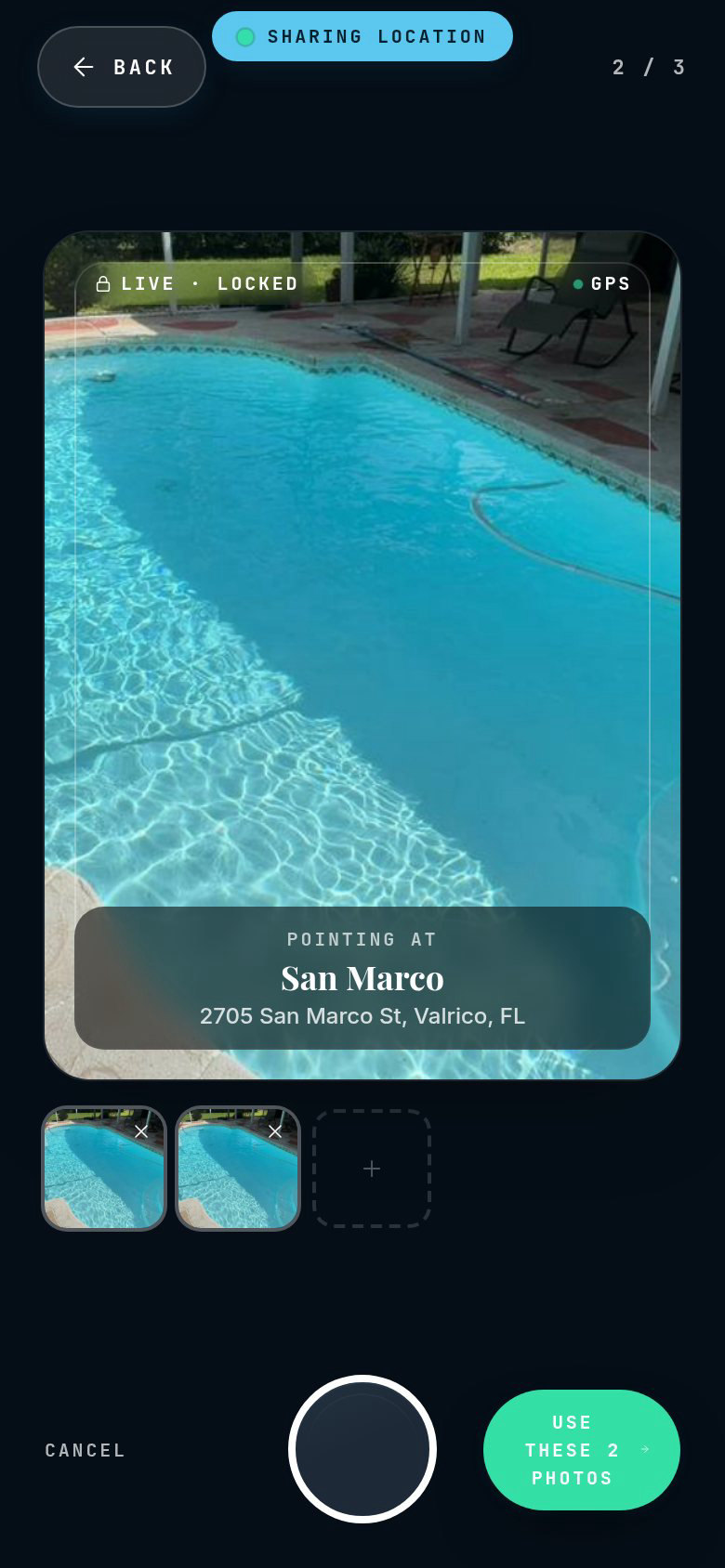
The in-app camera pointing at the San Marco pool, labelled Live, Locked and GPS, two thumbnails taken, a shutter button and Use these 2 photos.
Step 08 · The camera

Live only, no camera roll
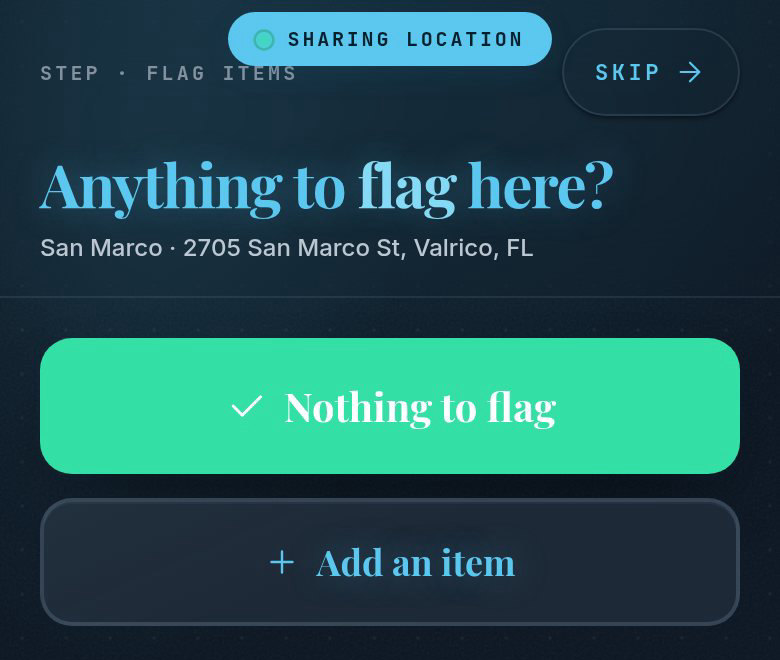
The flag step: Anything to flag here? with a green Nothing to flag button and Add an item beneath it.
Step 09 · Anything to flag?

Most stops end in one tap
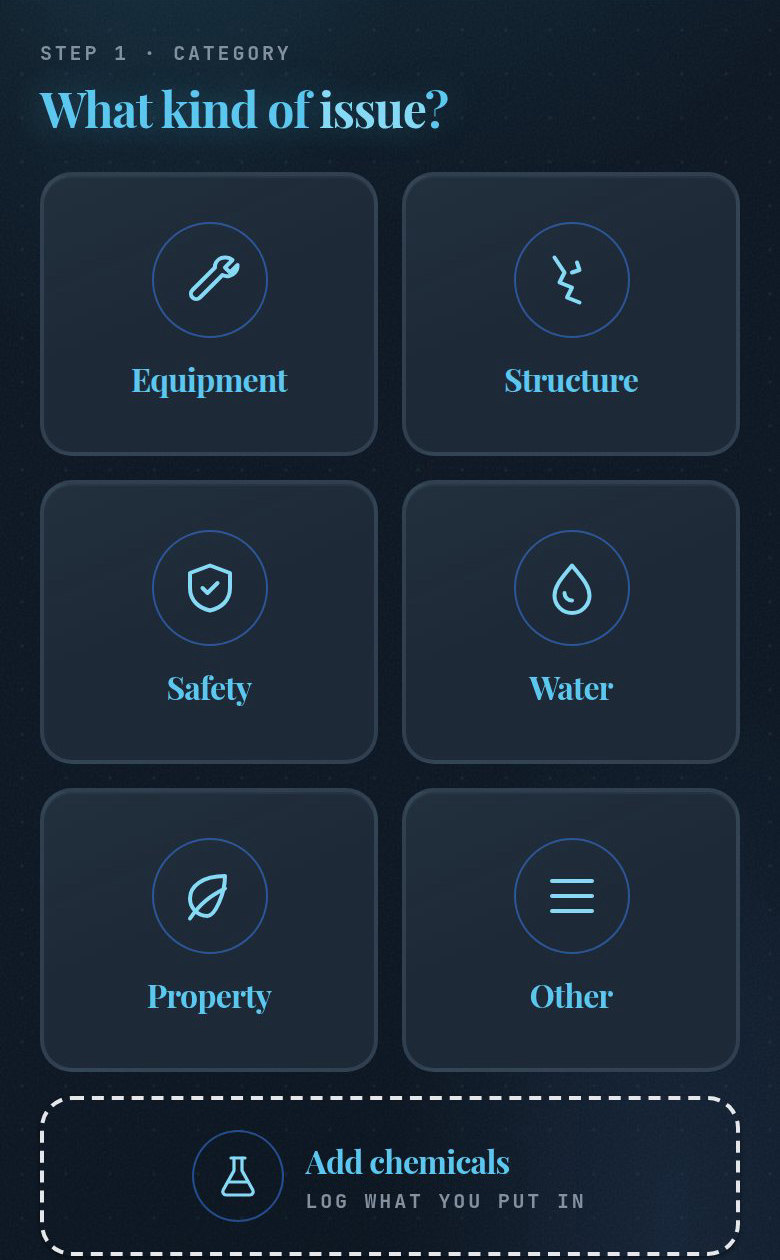
What kind of issue? Six category tiles: Equipment, Structure, Safety, Water, Property, Other, and an Add chemicals card.
Step 10 · Add an item

A flag becomes a job
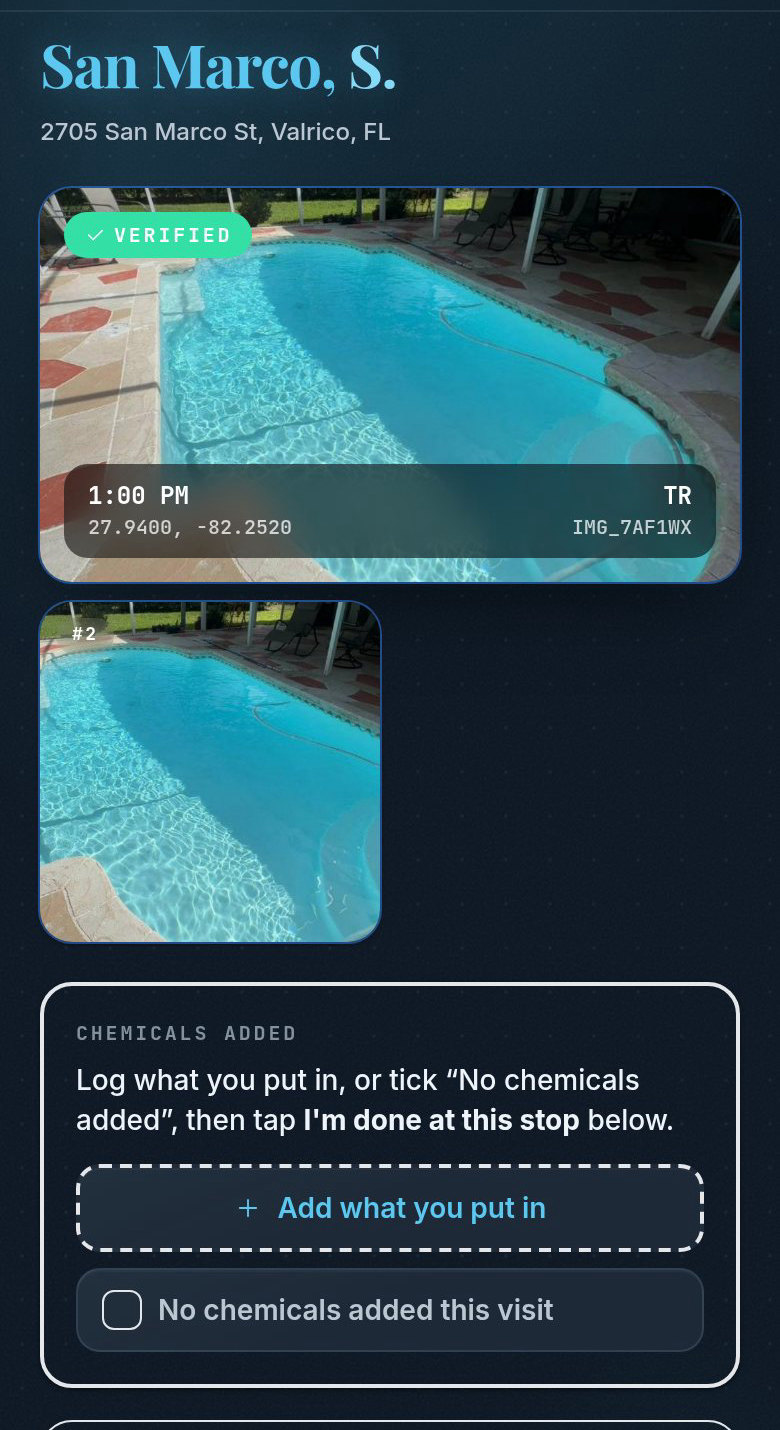
The verified visit: the pool photo with a green Verified badge and a stamp reading 1:00 PM, 27.9400, -82.2520.
Step 11 · Verified

Stamped by the server, not the tech
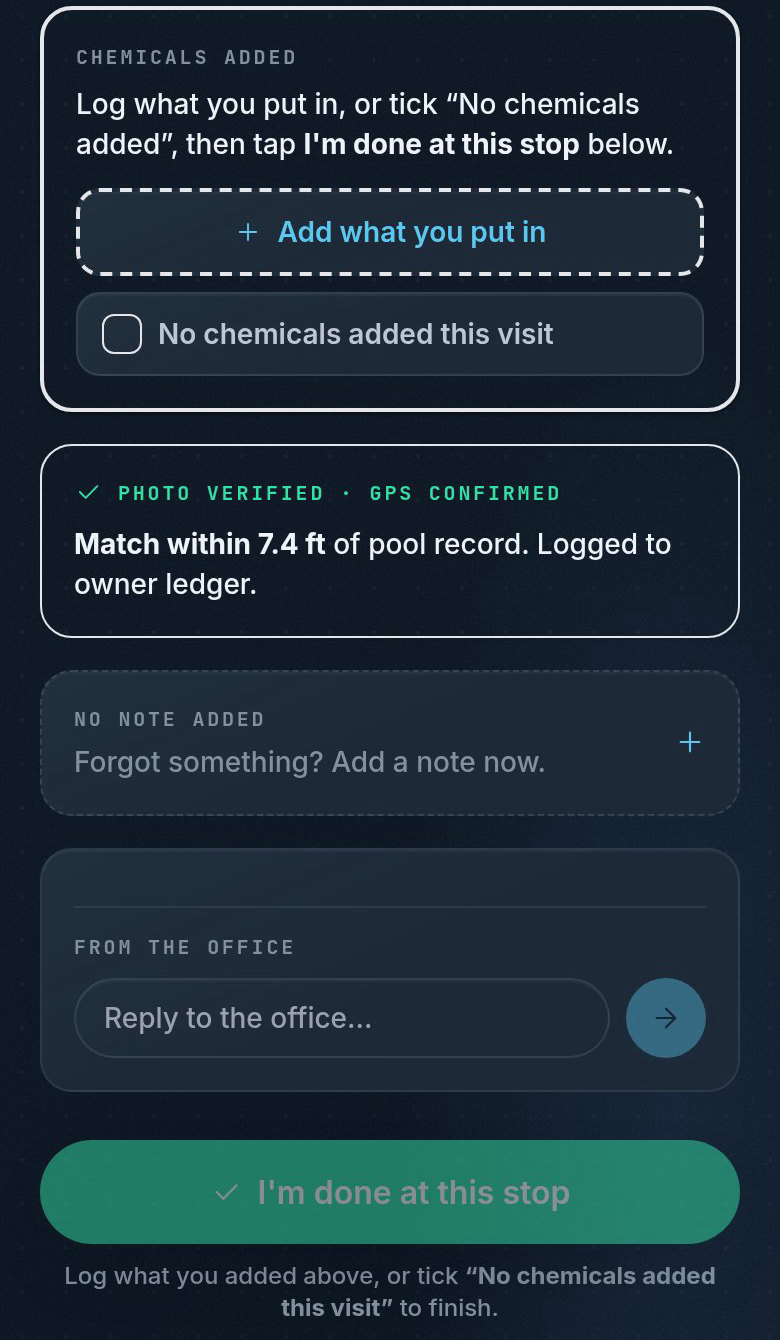
The bottom of the verified screen: Photo verified, GPS confirmed, match within 7.4 ft of pool record, a note field, a reply box from the office, and the I'm done at this stop button.
Step 12 · Done at this stop

That is the whole visit
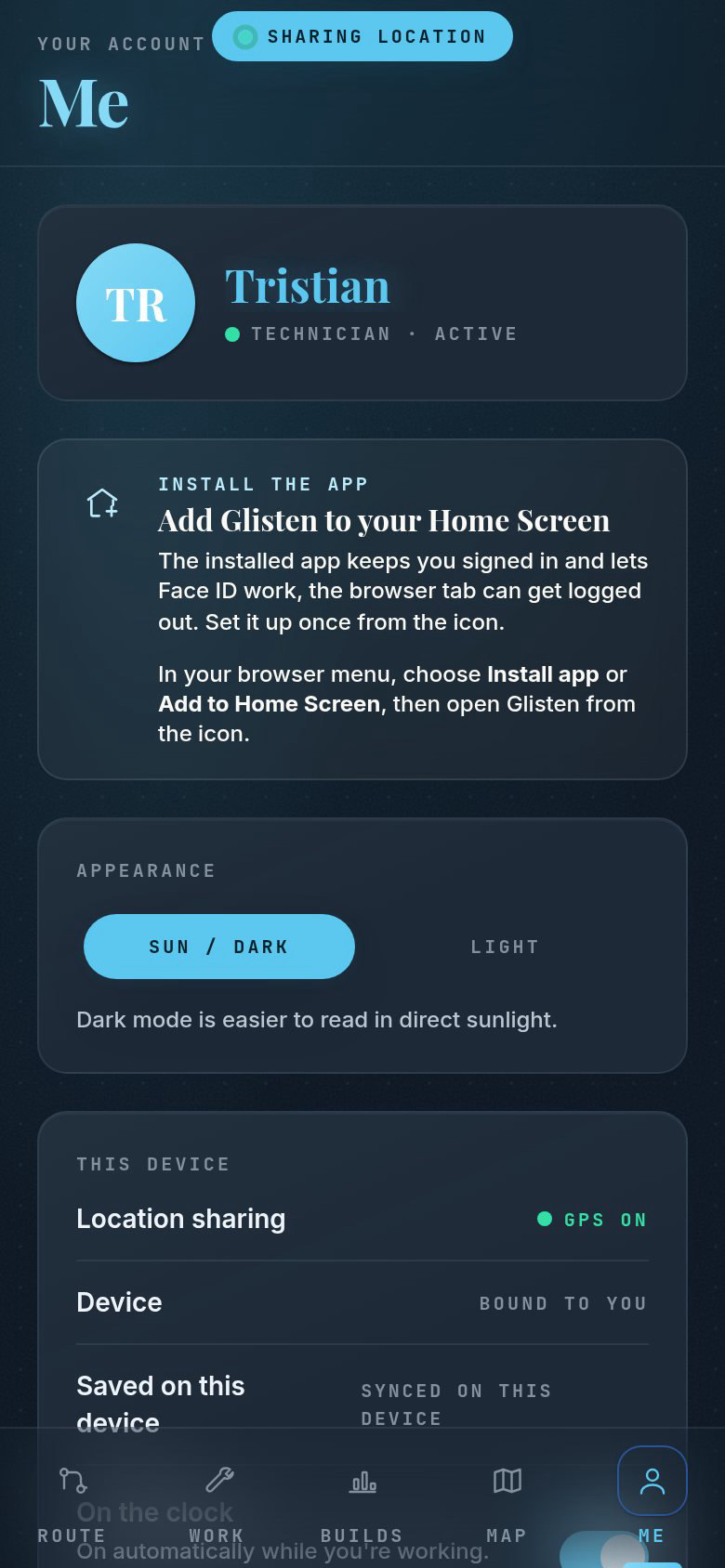
The Me tab: the tech's name and status, Add ProofStop to your Home Screen, appearance with a light and dark switch, and This device showing GPS on and the device bound to you.
Step 13 · The Me tab

Nothing else to manage
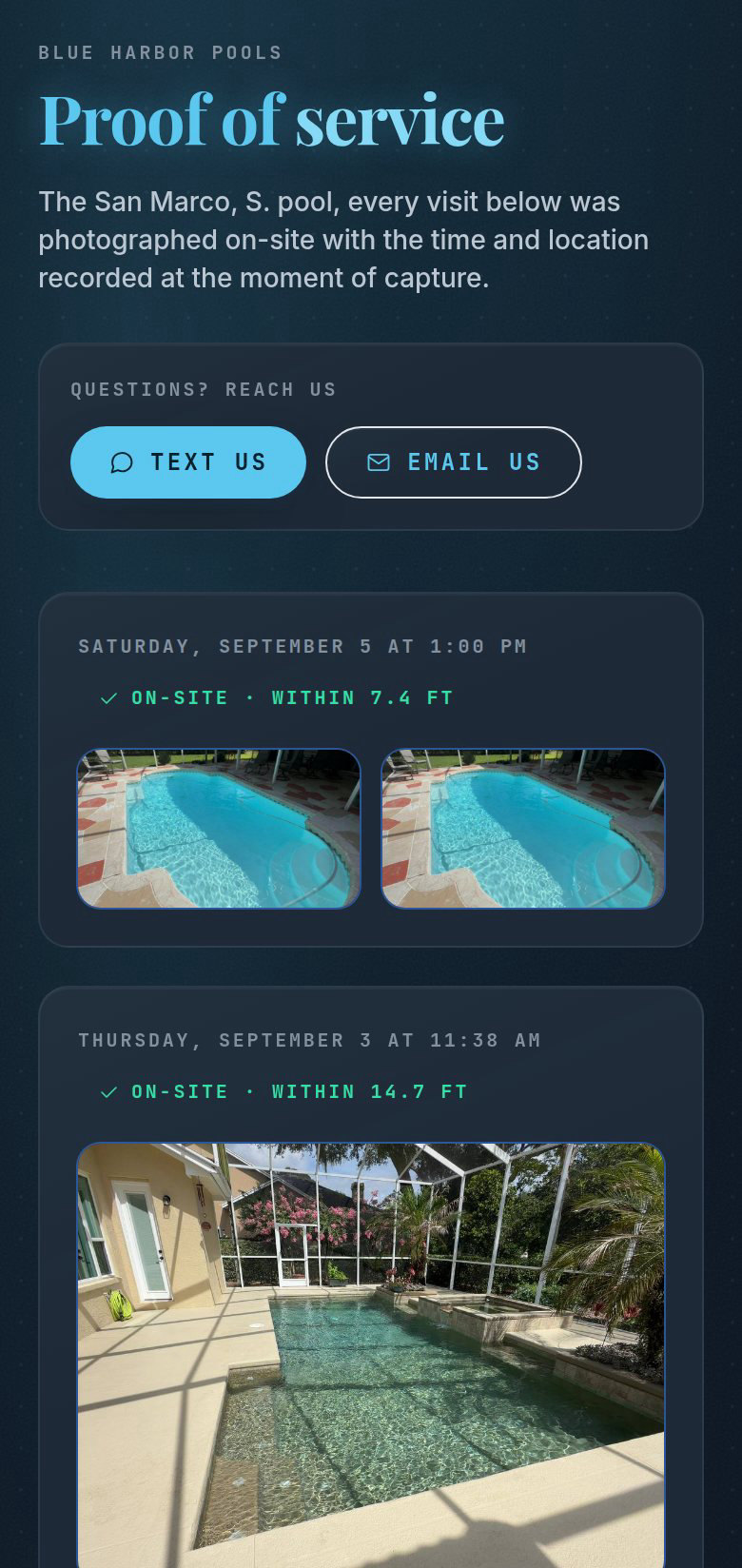
The public proof page: Proof of service for the San Marco pool, Text us and Email us buttons, and a visit card reading Saturday, September 5 at 1:00 PM, on-site within 7.4 ft, with two photos.
Step 14 · The customer's view

Proof, sent by text
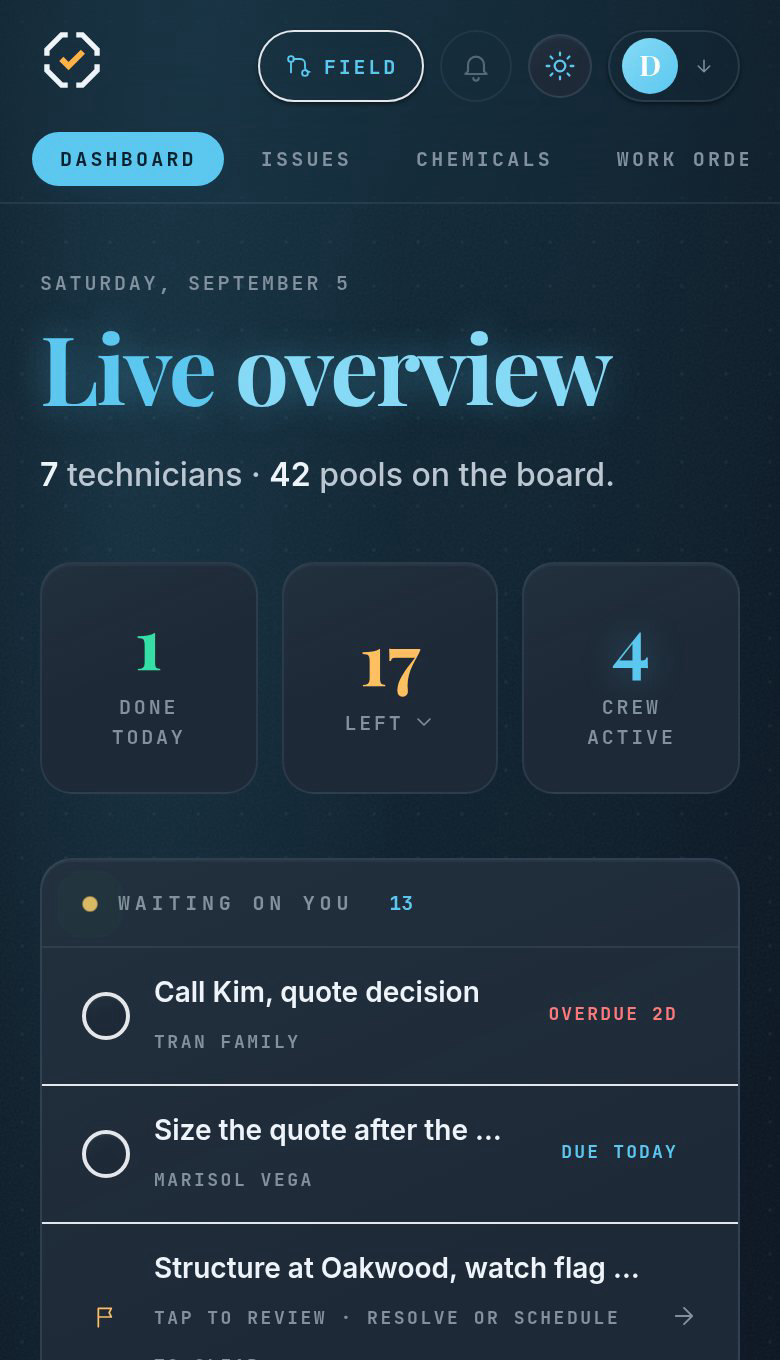
The owner dashboard: Live overview, 7 technicians and 42 pools, tiles for done today, left and crew active, and a Waiting on you list with open items.
Step 15 · The office's view

The same visit, on the board